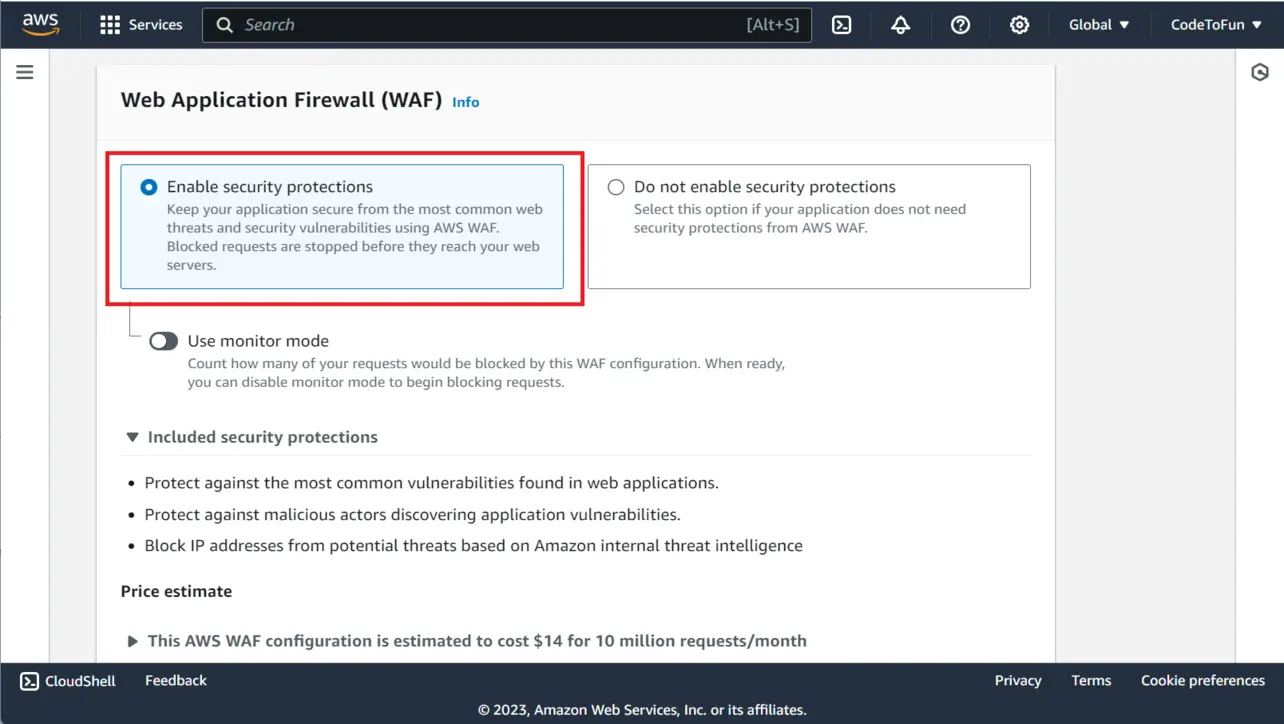
AWS WAF means Web Application Firewall. Think of it as a door guard for your website.
Every time someone opens a page or calls your API, a request arrives. WAF can look at that request and decide:
Allow — let it in.
Block — stop it.
Count — note it, but still let it in (safe for learning).
You write these choices as rules. A group of rules is called a web ACL (say it like “web A-C-L”). Then you attach that web ACL to the service that faces the internet—often CloudFront or an Application Load Balancer.
Beginner tip.
You do not need to write code for this tutorial. You click in the AWS console.
Why it matters
In Simple Words
What problem does it solve?
Your site is public. Anyone on the internet can send requests. Most requests are fine. Some try to break your app (for example by sending strange text in a form). WAF helps catch many of those bad patterns early.
Is WAF the same as a password?
No. Login and passwords are for who the user is. WAF is about what the request looks like—IP address, URL, headers, and body text.
When should a beginner use it?
After your site already loads with HTTPS. Learn CloudFront or an ALB first. Then add WAF as an extra safety layer.
A tiny traffic picture
Visitor → WAF check → CloudFront or load balancer → your app. If WAF blocks the request, your app never has to handle it.
Golden rule for beginners.
Use Count first. Watch for a while. Switch to Block only when you trust the rule.
Save, wait a minute or two, then open your site in a browser.
CloudFront (example)
How It Works
Association means: check every request at this door.
CloudFront attachment filters traffic near visitors (the edge).
ALB attachment filters traffic when visitors talk to the load balancer directly.
If the homepage still loads, the attach step worked and Count rules are not blocking you.
Step 4 — Watch the Matches, Then Tighten
Learn what WAF sees before you change user experience.
Browse your site like a normal user for a while.
In WAF, open the overview or sampled requests for your web ACL.
Look for rules that fire on normal pages. Those may need softer settings later.
When a rule looks trustworthy, change that rule from Count to Block.
Test the site again after each change.
How It Works
Sampled requests are examples of traffic that matched a rule.
Your goal is fewer surprises, not maximum Block on day one.
Change one thing at a time so you know what broke the site if something goes wrong.
Keep a way back: you can switch a rule back to Count or remove the association.
Avoid these
Common Beginner Mistakes
Blocking before watching
Turning on Block immediately can lock out real users. Use Count first.
Wrong door type
A CloudFront web ACL will not show up for an ALB, and the other way around. Create the matching type.
Protecting the wrong place
If visitors use CloudFront, put WAF on CloudFront. Putting it only on a hidden origin often misses the public traffic.
Default Block with no allow rules
For a public site, default Allow is safer while you learn. Default Block can take the whole site offline.
Too many paid extras at once
Start with a small managed pack. Add CAPTCHA or bot packs later when you understand the basics.
Thinking WAF replaces HTTPS
You still need certificates from ACM and a solid HTTPS setup.
Remember
Key Takeaways
WAF is a door guard for website and API requests.
A web ACL holds the rules you attach to CloudFront or an ALB.
Count → watch → Block is the safe learning path.
You do not need code to complete this beginner setup in the console.
One line: create a web ACL, add managed rules in Count mode, attach it to your public door, then Block only what you trust.
Frequently Asked Questions
AWS WAF is a filter that checks website and API requests and can allow them, block them, or only count them so you can see what would have been blocked.
No. First get your site working on CloudFront or an Application Load Balancer. Add WAF when you want extra protection against common web attacks and noisy bots.
Turn it on at the door users hit first. If people use CloudFront, attach WAF to CloudFront. If people go straight to an Application Load Balancer, attach WAF there.
Count means: notice the request and write it down, but still let it through. Use Count while you learn, so you do not lock out real users by mistake.
No. It helps against many common web attacks, but it is one layer. You still need good app code, HTTPS certificates, and careful access settings.
Yes. You usually pay for the web ACL, the rules, and each request WAF checks. Start with a few rules. Check the current AWS WAF pricing page before you use it on a busy site.