FileZilla — SFTP to EC2

What you’ll learn
Amazon EC2 instances are remote Linux servers. FileZilla is a free desktop client that supports SFTP, so you can drag-and-drop files without mounting disks manually.
This guide configures FileZilla Site Manager with your instance public DNS or IPv4, the correct OS login name, and your private key for authentication.
EC2 and FileZilla at a glance
- Amazon EC2 — virtual machines in the cloud. You SSH (or SFTP) using a key pair created at launch time.
- FileZilla — graphical client for FTP, FTPS, and SFTP. For EC2, always pick SFTP so traffic uses the SSH service on port 22.
Before you connect
Gather these four items before you open Site Manager—SFTP reuses the same host, port, user, and key material as SSH with PuTTY.
Host & state
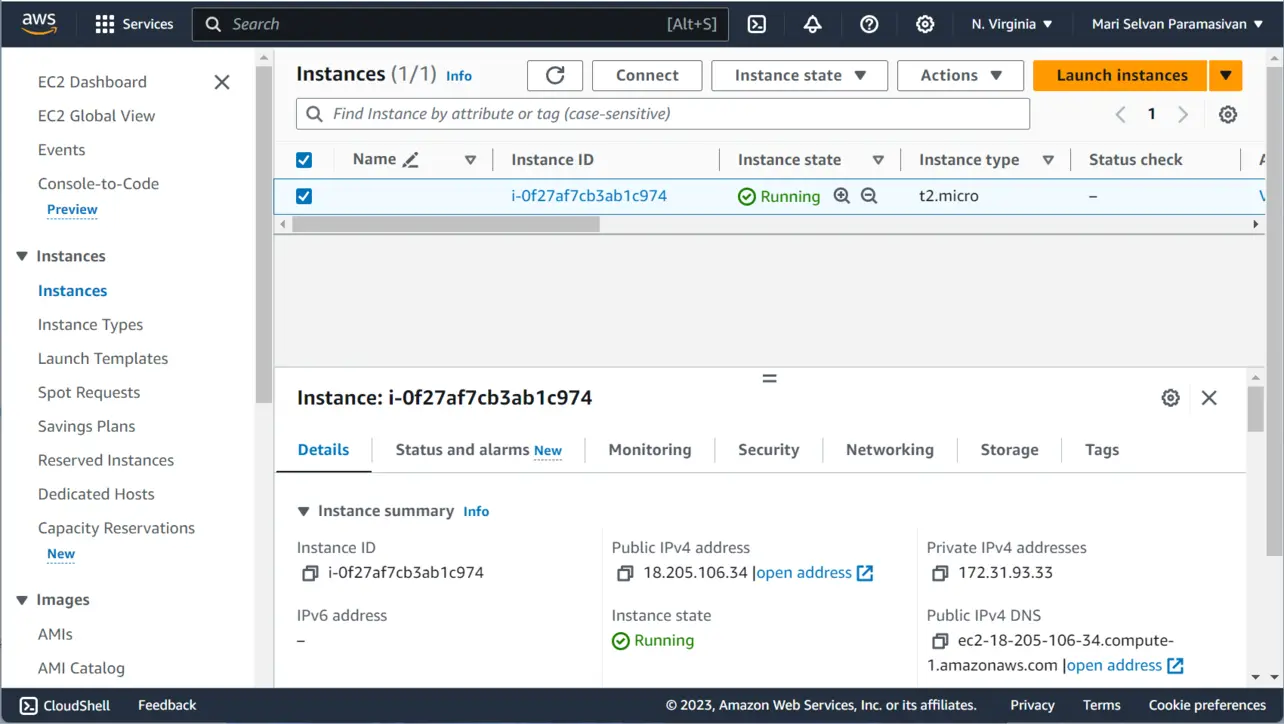
The instance must be running. Copy Public IPv4 address or Public IPv4 DNS from the EC2 list view. For a stable address between stop/start cycles, attach an Elastic IP.
Security group
Inbound TCP 22 (SSH) must allow your current public IP or a trusted range. SFTP uses the same port as SSH. If PuTTY works, FileZilla usually will too.
Private key
Use the .ppk from PuTTYgen on Windows, or a .pem / OpenSSH key if your FileZilla build accepts it. Only .pem? Convert to .ppk in PuTTYgen before choosing the key file in Site Manager.
SSH username
Must match the AMI defaults (case-sensitive).
- Ubuntu
ubuntu - Amazon Linux
ec2-user
Example: a running Ubuntu instance in the EC2 console (your IDs and names will differ).
Install FileZilla
Download the client from the official site (choose the standard FileZilla Client installer for your OS):
Configure FileZilla Site Manager
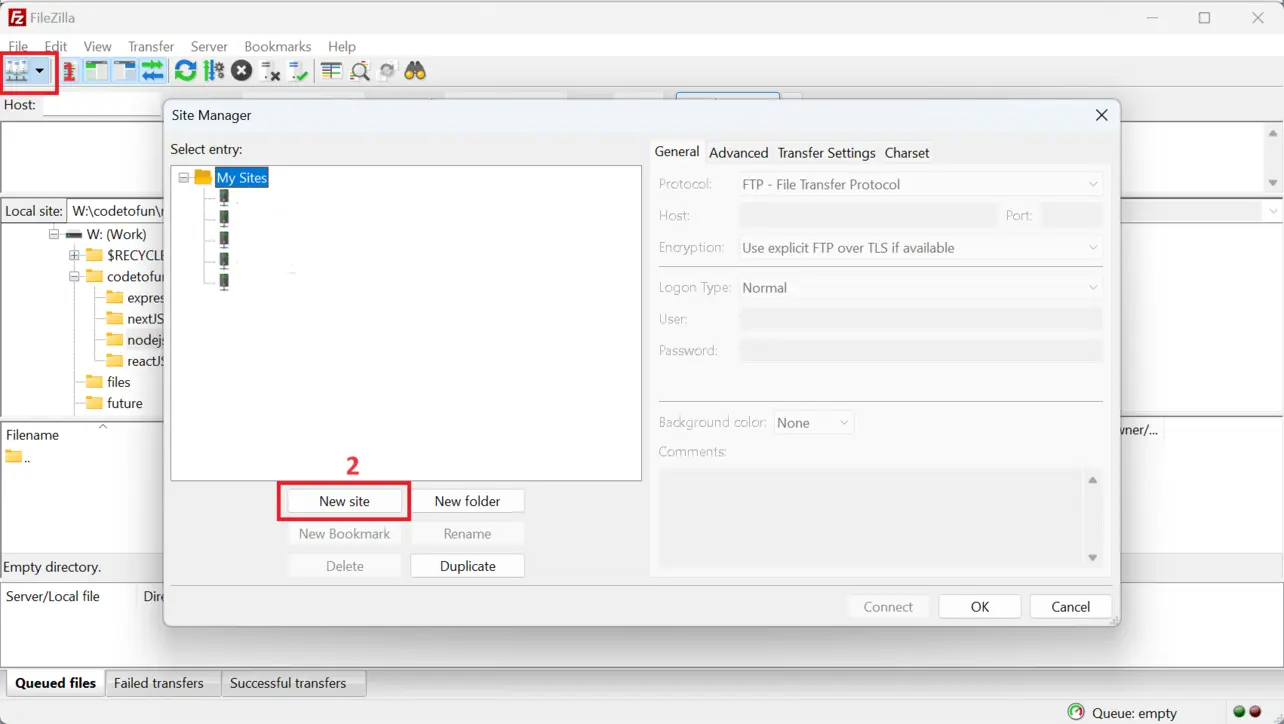
Open FileZilla, then File → Site Manager (or the toolbar icon). Create a New site and apply the following.
Create a new site entry.
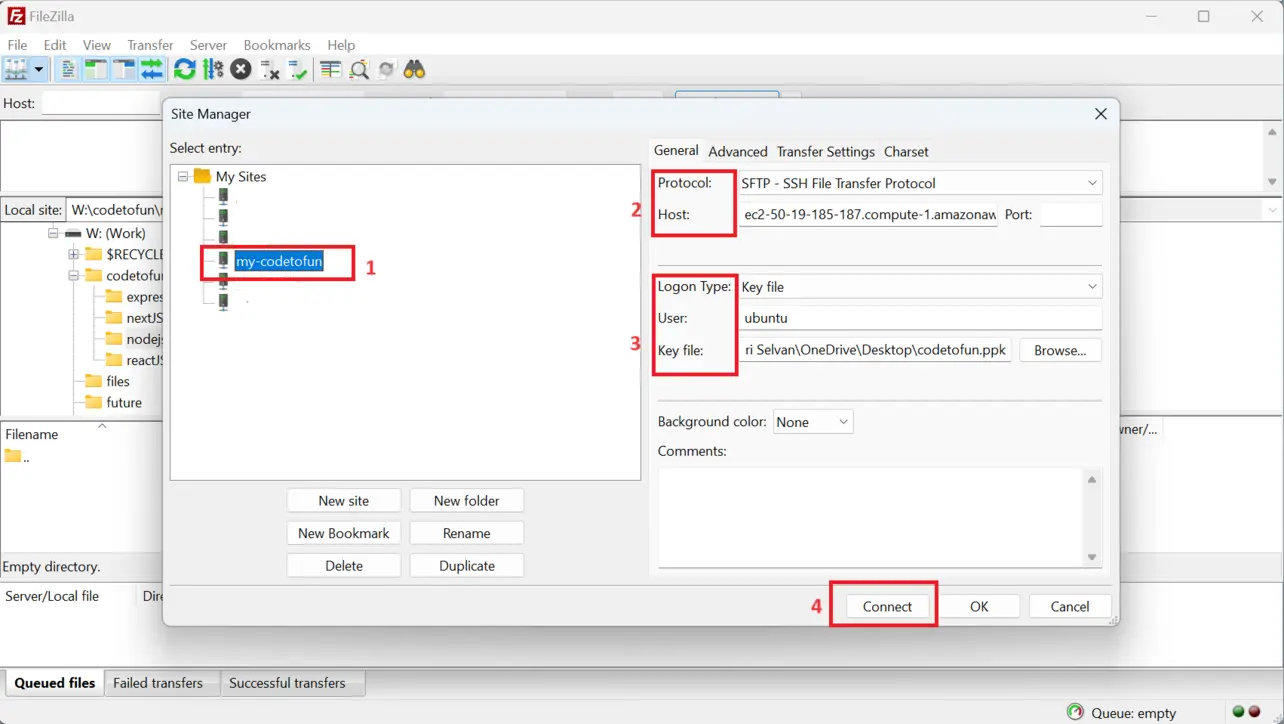
FileZilla Set connection parameters:
- Protocol — SFTP (not FTP).
- Host — your instance Public IPv4 address or Public IPv4 DNS (see next step).
- Port —
22(default for SFTP/SSH). - Logon Type — Key file (or the option your version offers for key-based auth).
- User —
ubuntufor Ubuntu AMIs,ec2-userfor many Amazon Linux AMIs (see below). - Key file — browse to your private key (
.ppkor supported.pem).
FileZilla Find the public DNS or IP in the EC2 console:
- Open Instances and select your instance.
- Choose Connect.
- Open the SSH client tab and copy the hostname shown there (or read Public IPv4 address from the details pane).
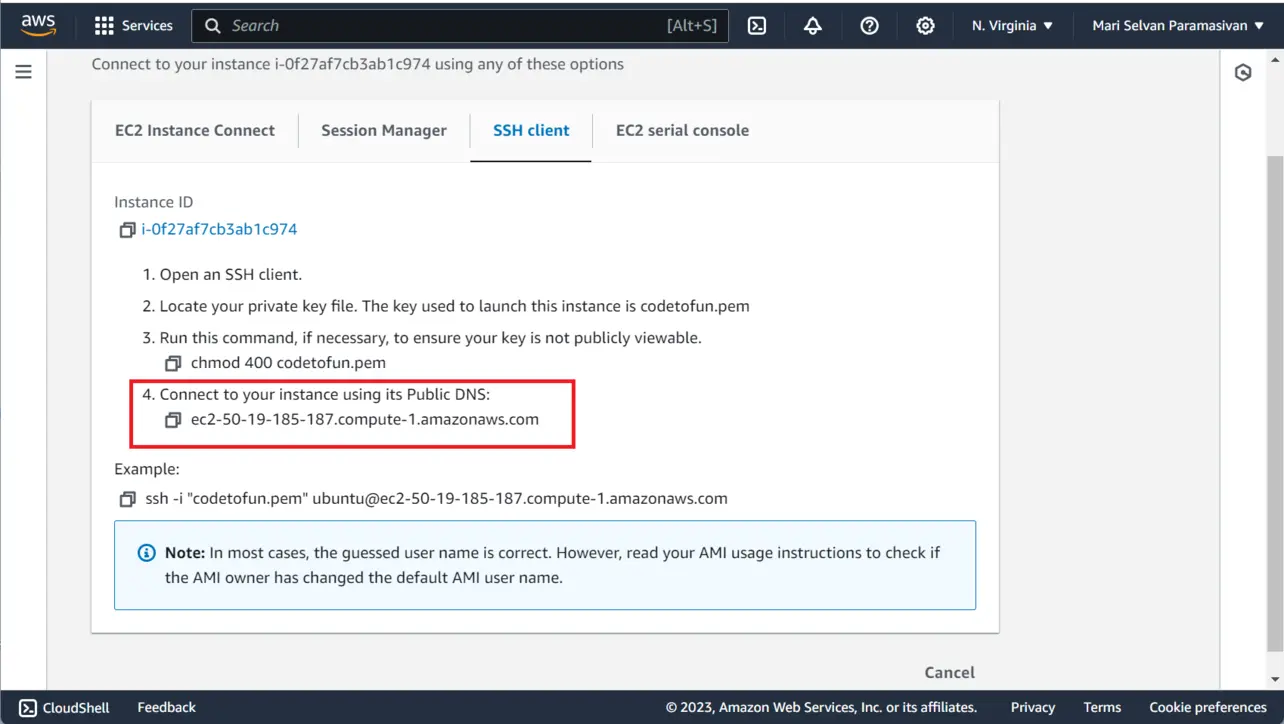
Amazon EC2 Confirm the SSH username on the same SSH client tab (it matches what you type in FileZilla).
- Open Instances, select the instance, then Connect.
- Use the SSH client tab for the example user and command.
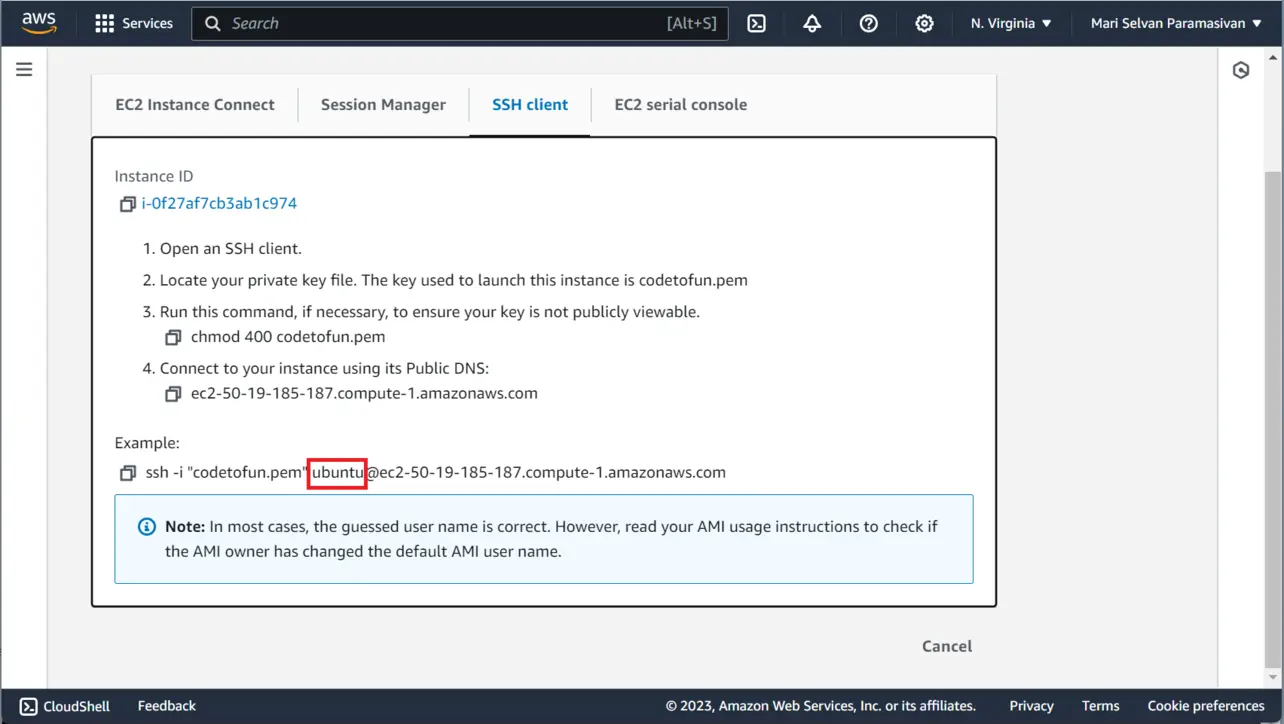
Amazon EC2 In Site Manager, choose Connect (or connect from the toolbar after selecting the site). Accept the host key prompt the first time if it appears.
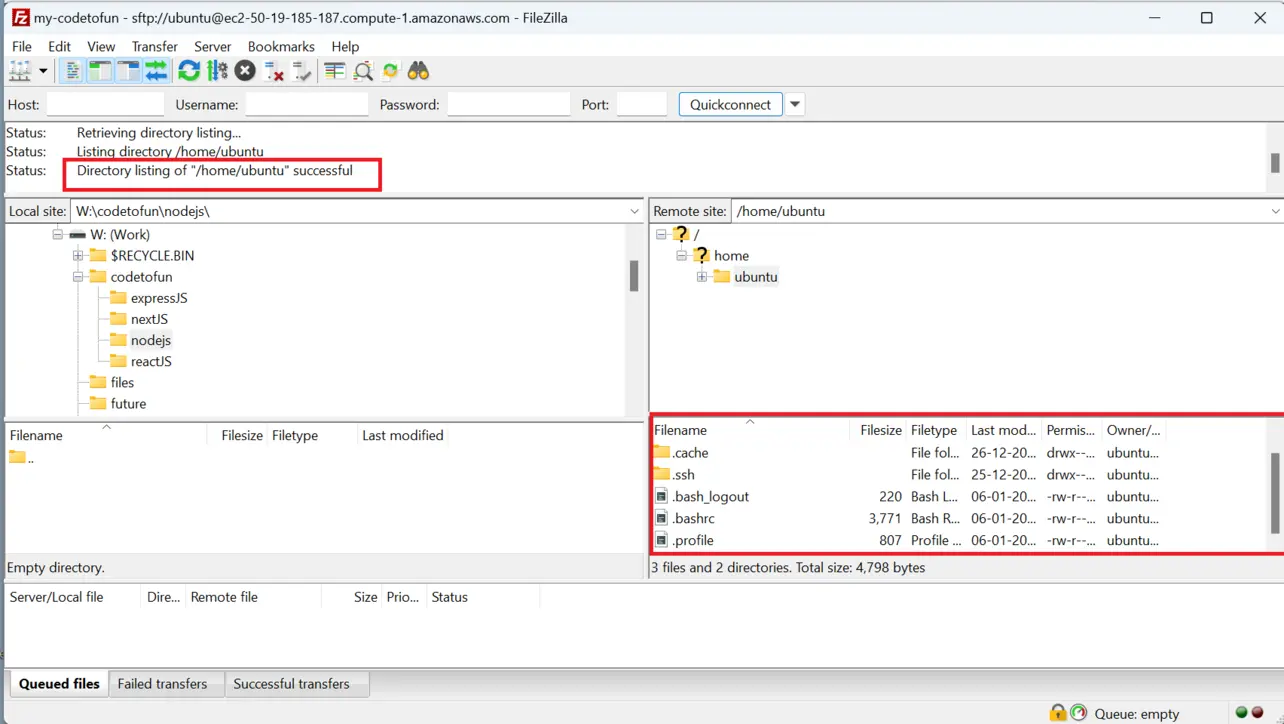
FileZilla You should see the remote home directory (for example
/home/ubuntu) in the right-hand pane. You can now upload and download files.
Troubleshooting
- Connection refused / timeout — verify the instance is running, has a public IP or DNS path, and the security group allows inbound TCP 22 from your current public IP.
- Authentication failed / wrong key — confirm the username matches the AMI, and that the private key matches the public key on the instance. Try PuTTYgen to convert
.pemto.ppkif FileZilla rejects the key format. - Permission denied on upload — you may need to upload to your home directory first, then
sudo mvinto system paths (for example/var/www), or adjust ownership withchownfor app folders.
Key takeaways
Use SFTP on port 22 with the same key and user you would use for SSH.
Host can be public IPv4 DNS or the Elastic IP address if you associated one.
Pick ubuntu or ec2-user (or the user shown in EC2 Connect) so authentication lines up with the AMI.
Frequently asked questions
Next: deploy Node.js
With SFTP working and Node installed, copy your project files to the instance and follow the Node.js on EC2 guide for PM2 and port setup.
FileZilla is a widely used open-source client for FTP, FTPS, and SFTP. For EC2, SFTP rides over the same SSH port (22) as shell access, so your security group must allow SSH from your IP (or your chosen source) for transfers to succeed.
About the author


8 people found this page helpful