Amazon S3 — download to your machine

What you’ll learn
Amazon Simple Storage Service (S3) is object storage for files, backups, static sites, and data lakes. This guide focuses on the AWS Command Line Interface (CLI): creating access keys for a local profile, running aws configure, and copying objects from a bucket to a folder on your computer.
Prerequisites
Before you begin, ensure you have the following:
- An AWS account with permission to read the target S3 bucket (for example
s3:GetObjectand list on the prefix you need). - The AWS CLI installed on your computer.
Create an access key ID and secret access key
To authenticate the CLI as an IAM user, create an access key pair in the console (exact labels can vary slightly over time):
Log in to the AWS Management Console.
Open your account menu (top right), then Security credentials (or open IAM → your user → Security credentials).
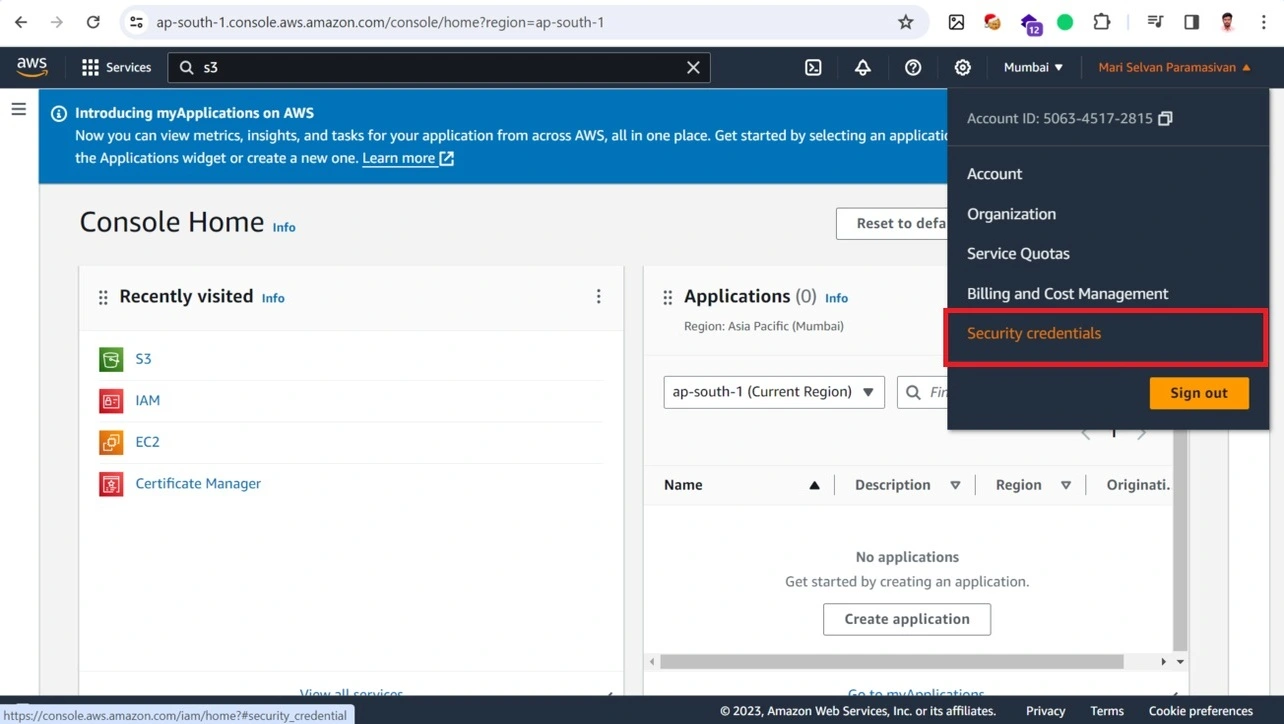
AWS Management Console Under Access keys, choose Create access key and complete the wizard. Store the secret immediately; you cannot view it again later.
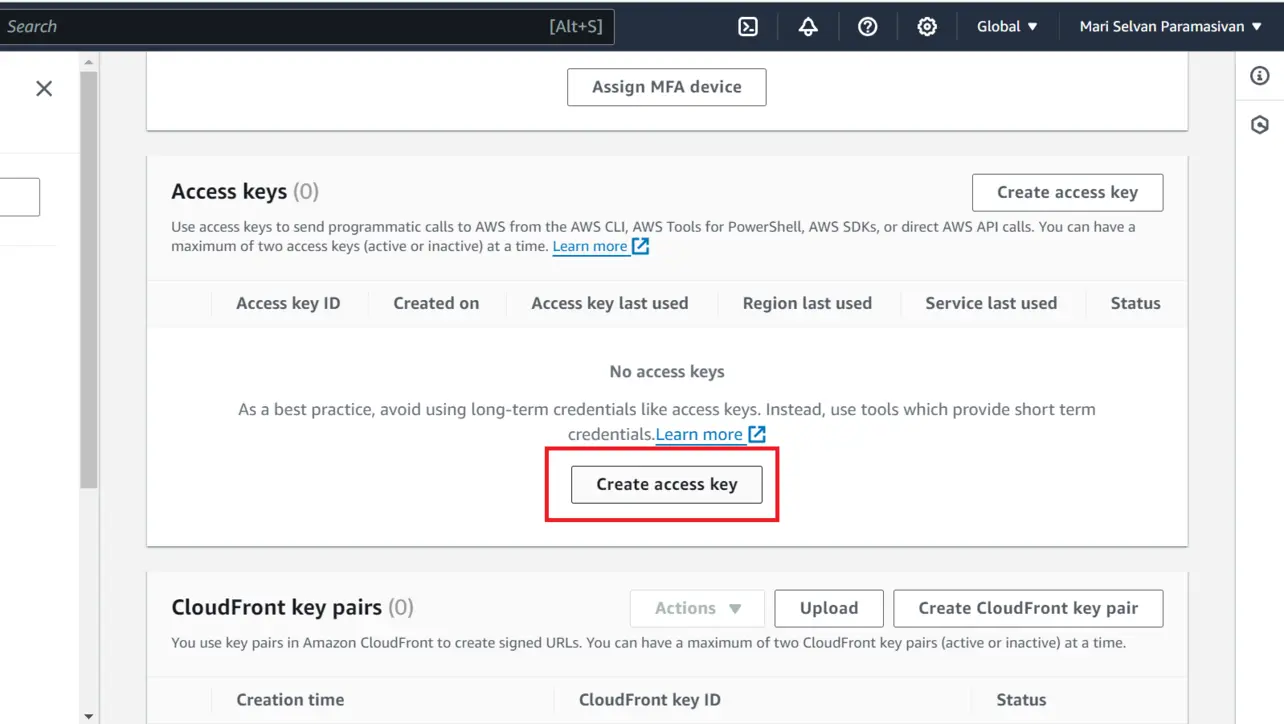
AWS Management Console You should now have an Access key ID and Secret access key to use with
aws configureon your machine.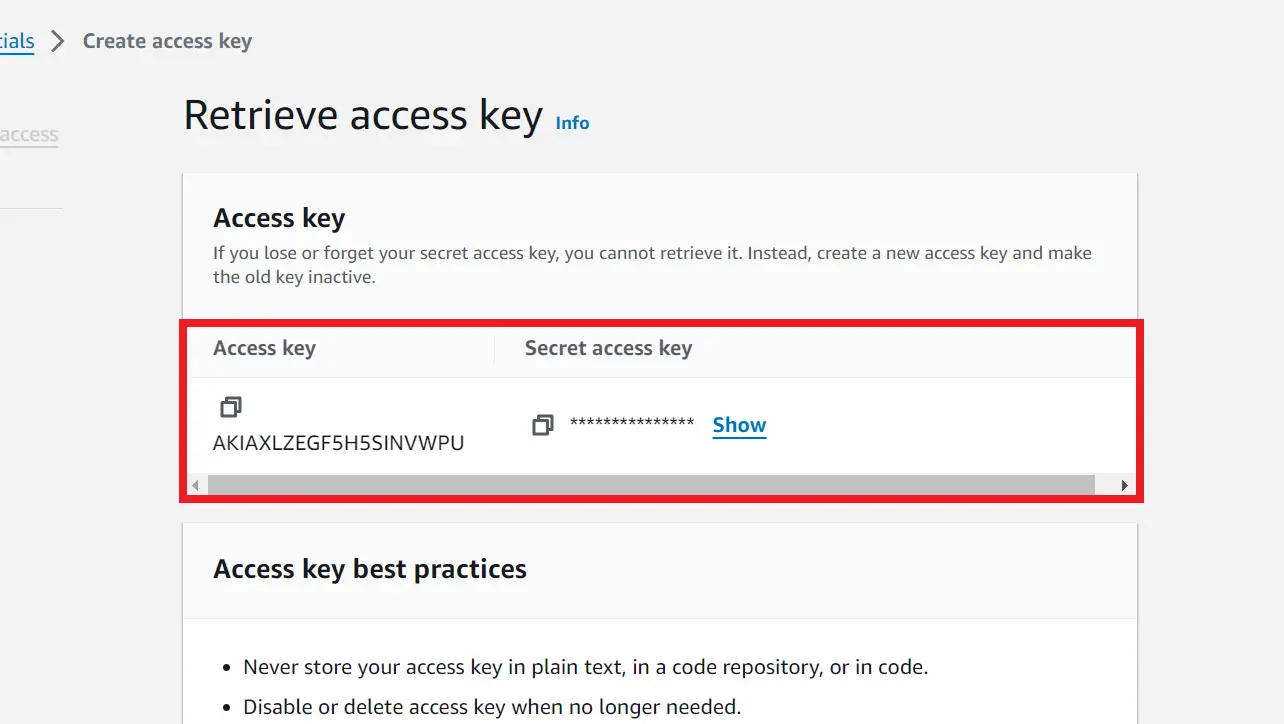
AWS Management Console
Configure the AWS CLI
Open a terminal or command prompt and run:
aws configureEnter your Access key ID, Secret access key, default Region (for example us-east-1), and output format (for example json) when prompted.
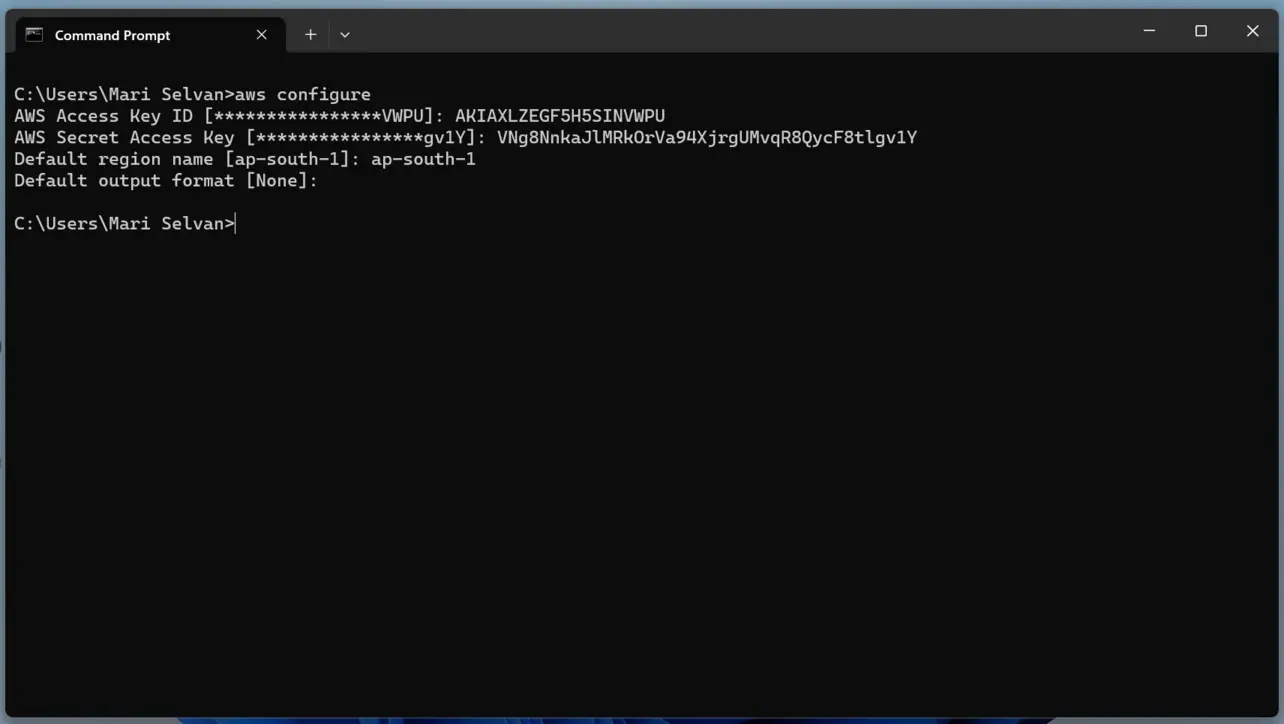
Warning: Only paste credentials into a machine you trust. Anyone with the secret key can call the AWS API as that principal until the key is disabled.
When configuration succeeds, you are ready to run aws s3 commands against your bucket.
Download a single file
Copy one object to a local path (adjust bucket, key, and destination):
aws s3 cp s3://your-bucket-name/path/to/image.jpg /path/on/local/machine/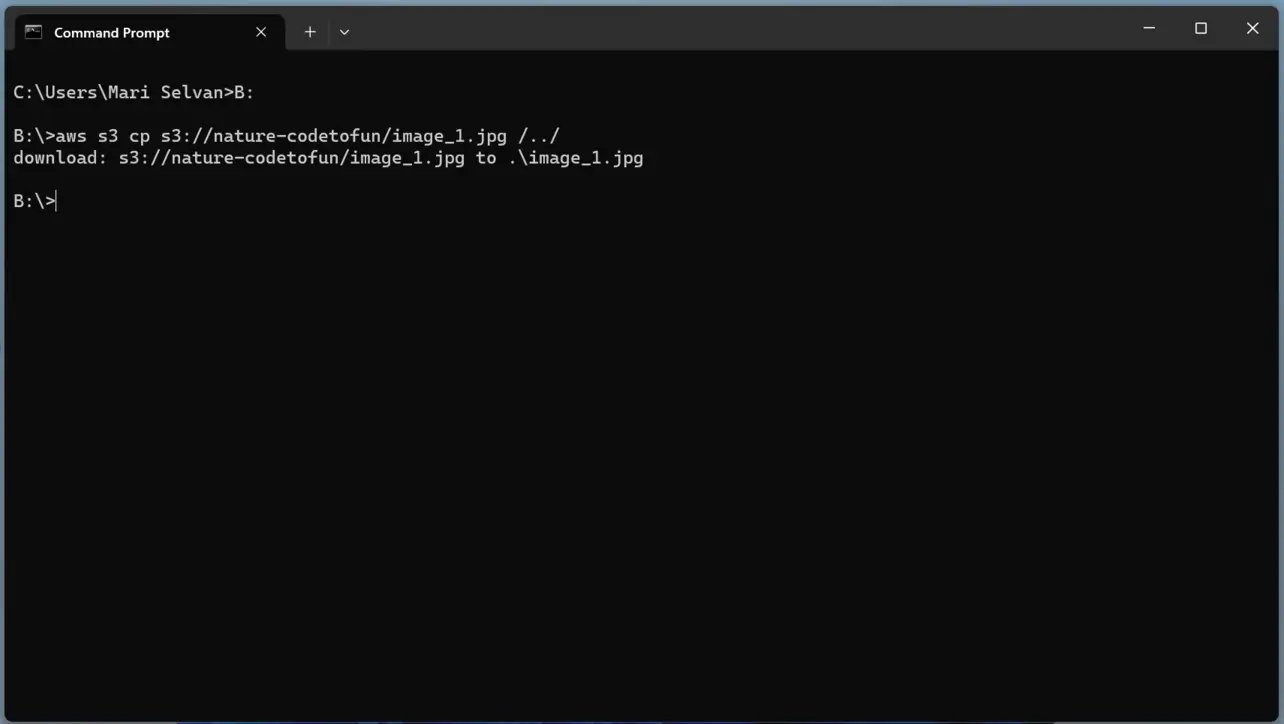
Download all objects under a prefix
Use --recursive to copy every object under the given S3 URI into a local directory:
aws s3 cp s3://your-bucket-name/ /path/on/local/machine/ --recursiveFor repeated runs where you only want new or changed files, aws s3 sync is often a better fit than a full recursive copy.
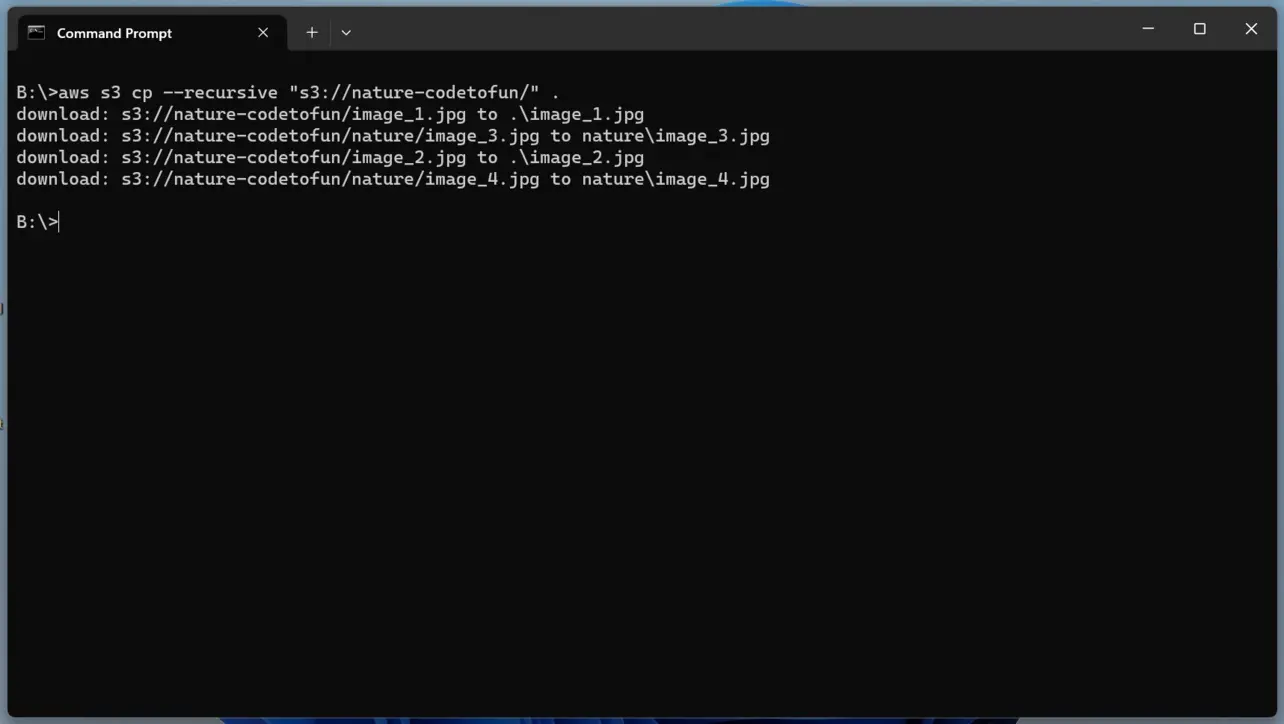
Download a subset (for example only JPEGs)
With aws s3 cp --recursive, you can add --exclude and --include filters. This example downloads only files ending in .jpg:
aws s3 cp s3://your-bucket-name/ /path/on/local/machine/ --recursive --exclude "*" --include "*.jpg"Filters are evaluated in order; start from a broad exclude and then add narrower includes, or consult the AWS CLI reference for s3 cp for advanced patterns.
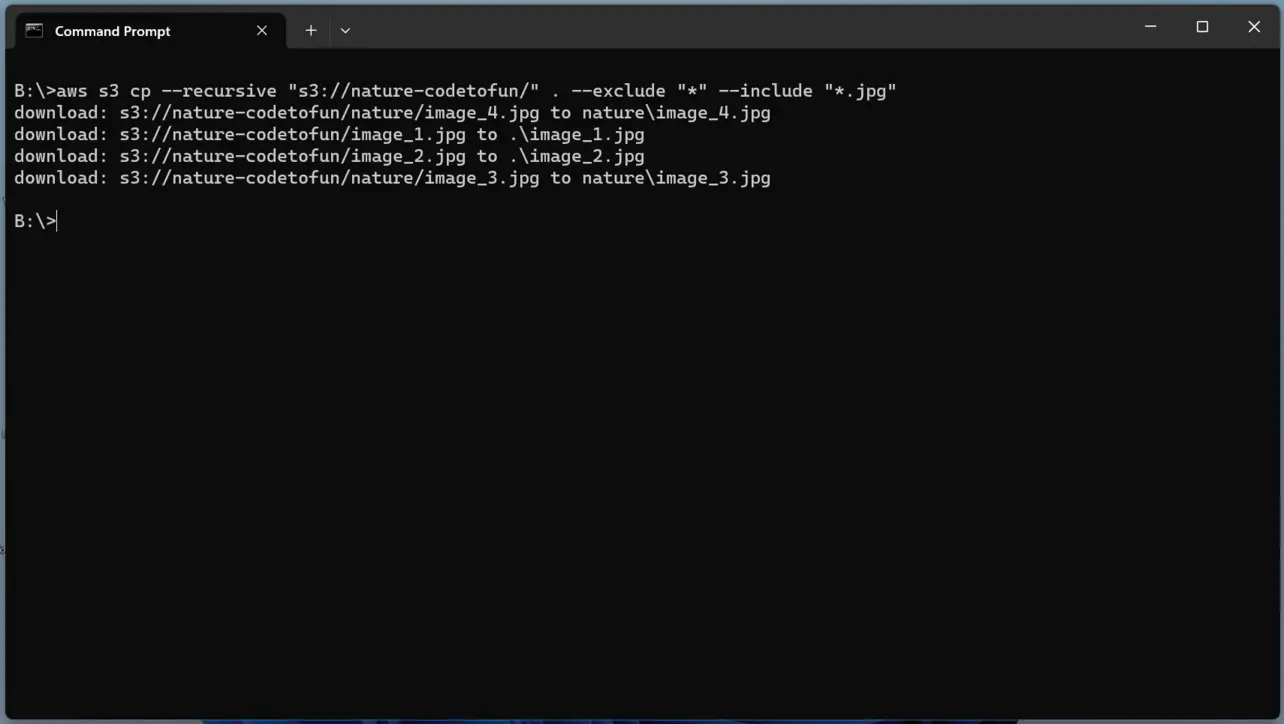
Key takeaways
Use aws configure (or another supported credential source) so the CLI can call S3 with the right account and Region.
aws s3 cp copies a single object or a tree with --recursive; aws s3 sync helps keep a local folder aligned over time.
--exclude and --include let you pull only the file types you need from a large prefix.
Frequently asked questions
aws s3 cp with the s3:// URI for the object and a destination path on disk, for example aws s3 cp s3://my-bucket/photos/a.png ./a.png.aws s3 cp copies the paths you specify; with --recursive it walks the prefix. aws s3 sync compares source and destination and skips files that already match size and timestamp (or ETag), which is useful for incremental backups.Next: HTTPS on AWS
After moving data with S3 and the CLI, use ACM to provision certificates for load balancers, APIs, and CloudFront.
For day-to-day AWS access from your laptop, IAM Identity Center (SSO) or short-lived credentials are preferable to long-lived access keys. Use keys from this guide only in trusted environments and rotate or delete them when you are done.
About the author


8 people found this page helpful