Deploy Node.js on EC2

What you’ll learn
Deploying a small Node.js site on Amazon EC2 is a common way to learn cloud hosting. This guide uses the built-in http module (no frameworks), uploads files with FileZilla, and keeps the server online with PM2.
You will run on port 80 for simple browser tests; production setups usually add a reverse proxy and HTTPS.
Prerequisites
- AWS account and EC2
- An AWS account with access to EC2.
- Running EC2 instance
- An EC2 instance (Ubuntu recommended) reachable over SSH.
- Elastic IP (recommended)
- An Elastic IP for a stable public address.
- FileZilla
- FileZilla (or SFTP) for uploads.
- PuTTY or SSH
- PuTTY or OpenSSH for shell access.
- Node.js and npm
- Node.js and npm installed on the instance.
Minimal Node.js sample
Create two files locally: index.js (HTTP server) and hello-world.html. The server answers / in plain text and serves the HTML file for /hello-world.
const http = require('http');
const fs = require('fs');
const path = require('path');

const server = http.createServer((req, res) => {
  if (req.url === '/') {
    res.writeHead(200, { 'Content-Type': 'text/plain; charset=utf-8' });
    res.end('Hello, this is the root!');
  } else if (req.url === '/hello-world') {
    const filePath = path.join(__dirname, 'hello-world.html');
    fs.readFile(filePath, 'utf8', (err, data) => {
      if (err) {
        res.writeHead(500, { 'Content-Type': 'text/plain; charset=utf-8' });
        res.end('Internal Server Error');
      } else {
        res.writeHead(200, { 'Content-Type': 'text/html; charset=utf-8' });
        res.end(data);
      }
    });
  } else {
    res.writeHead(404, { 'Content-Type': 'text/plain; charset=utf-8' });
    res.end('404 Not Found');
  }
});

const PORT = 80;

server.listen(PORT, () => {
  console.log(`Server running at http://localhost:${PORT}/`);
});<!DOCTYPE html>
<html lang="en">
<head>
<meta charset="UTF-8">
<meta name="viewport" content="width=device-width, initial-scale=1.0">
<title>Hello World</title>
</head>
<body>
<h1>Hello, World!</h1>
<p>This page is served by Node.js.</p>
</body>
</html>Deploy on EC2
Confirm the instance is running and note the public DNS or IP.
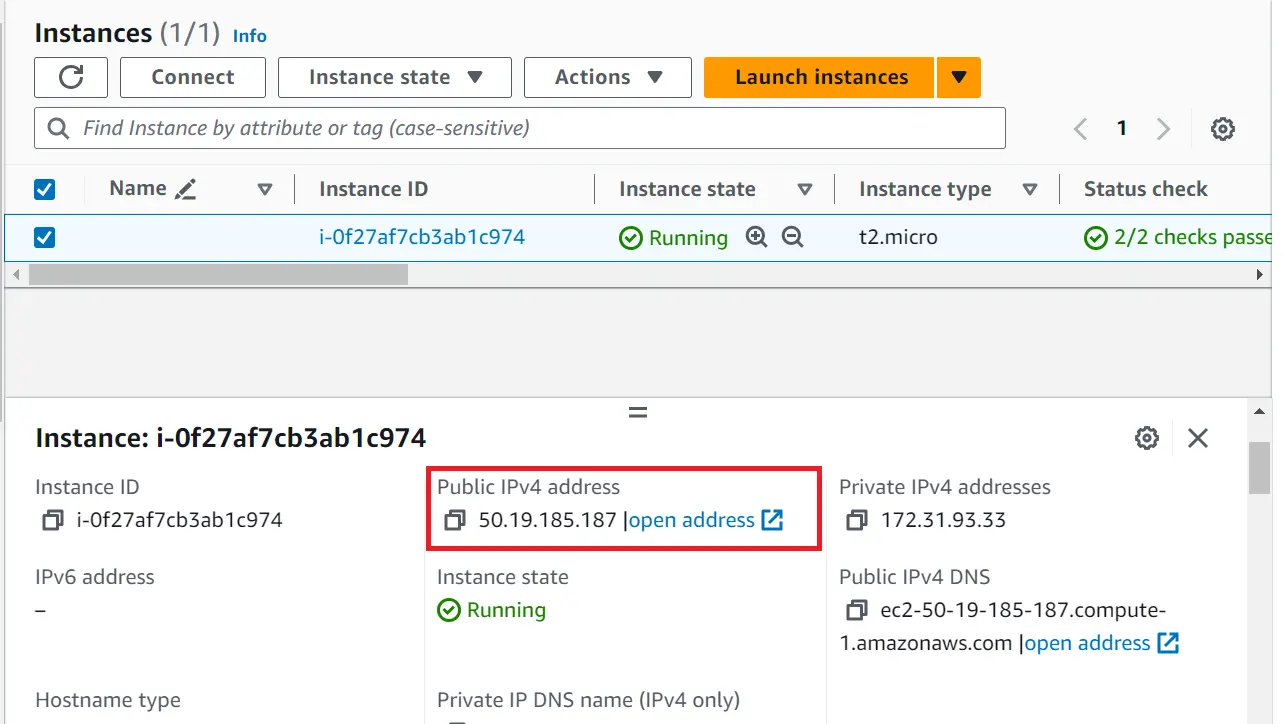
Amazon EC2 Connect with PuTTY or
ssh.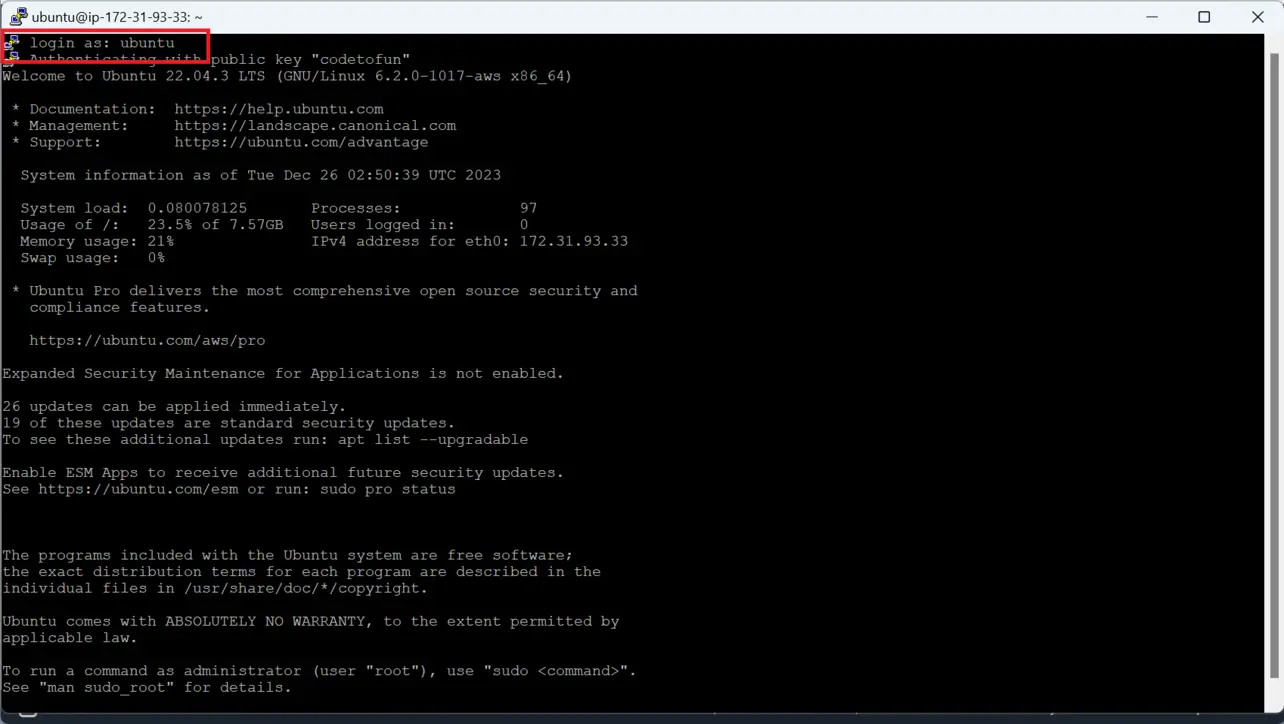
PuTTY Verify Node and npm with
node -vandnpm -v. Install them if needed: Node.js and npm on Ubuntu EC2.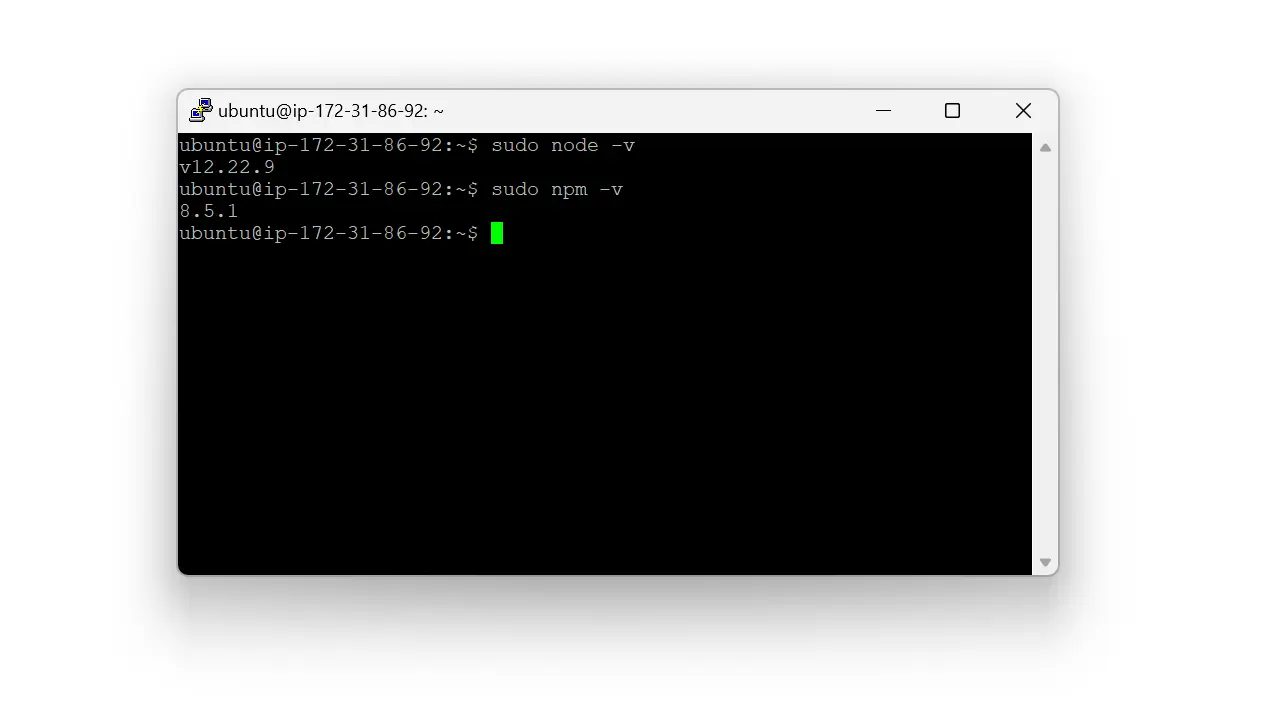
Ubuntu Create a deploy directory and set ownership:
Terminal (EC2)sudo mkdir -p /home/ubuntu/nodejs-website sudo chown ubuntu:ubuntu /home/ubuntu/nodejs-website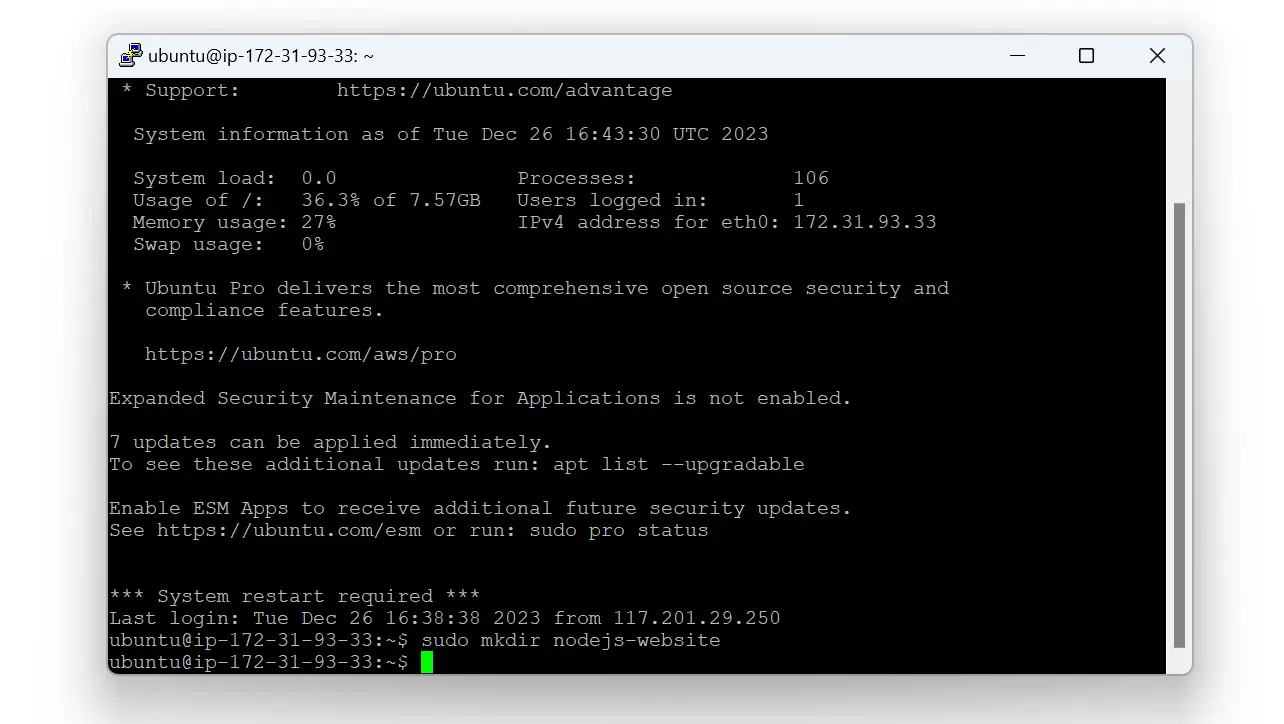
Ubuntu Optional demo-only permissions for SFTP:
Terminal (EC2)sudo chmod 777 /home/ubuntu/nodejs-website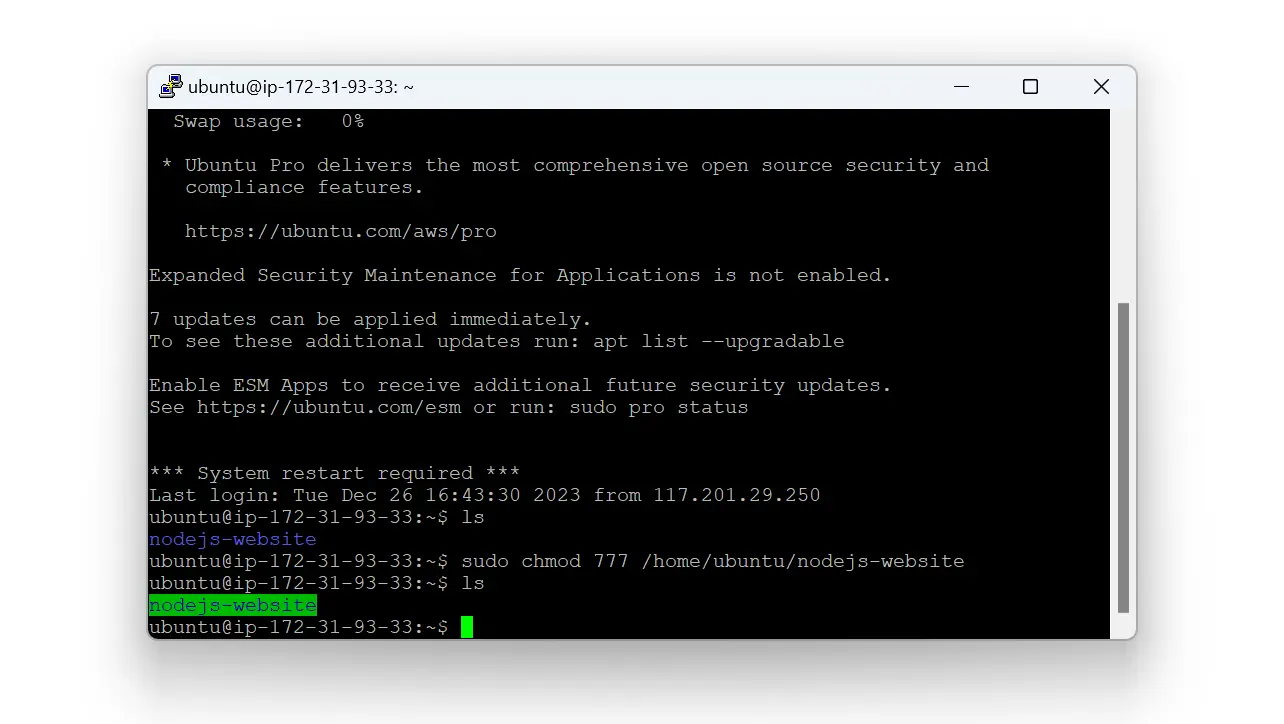
Ubuntu Upload
index.jsandhello-world.htmlwith FileZilla.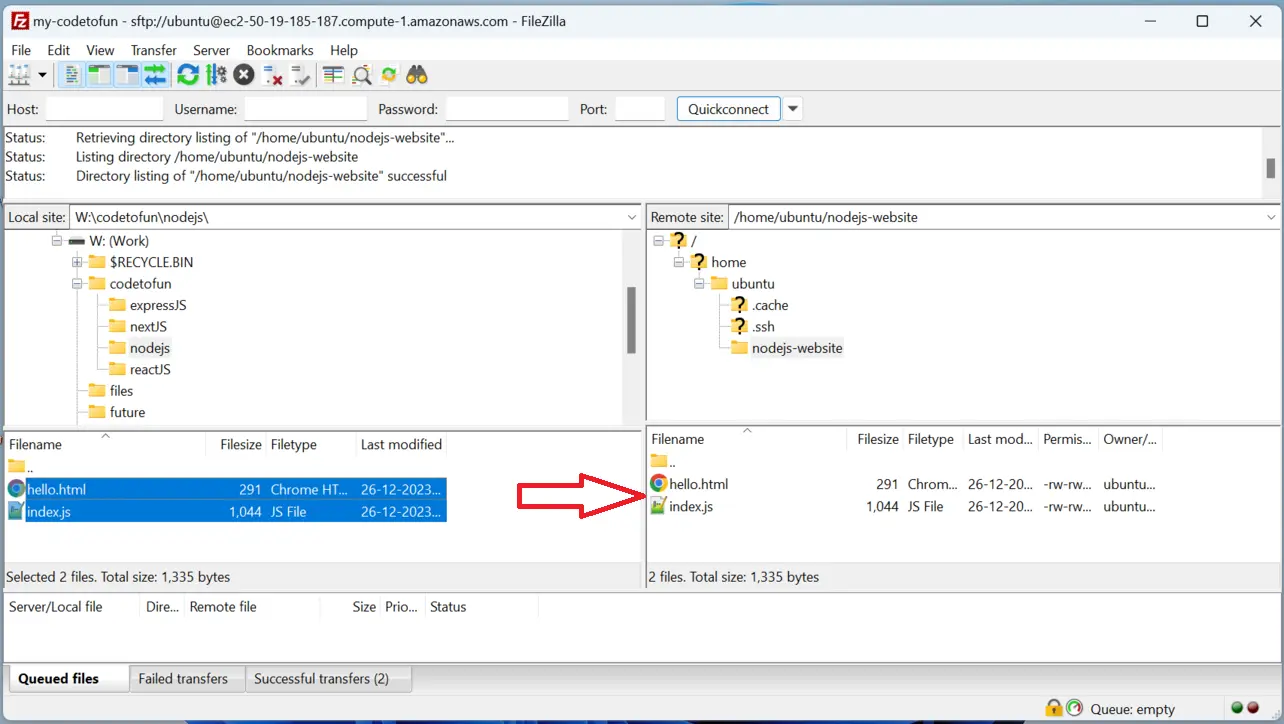
FileZilla Install PM2 globally:
Terminal (EC2)sudo npm i -g pm2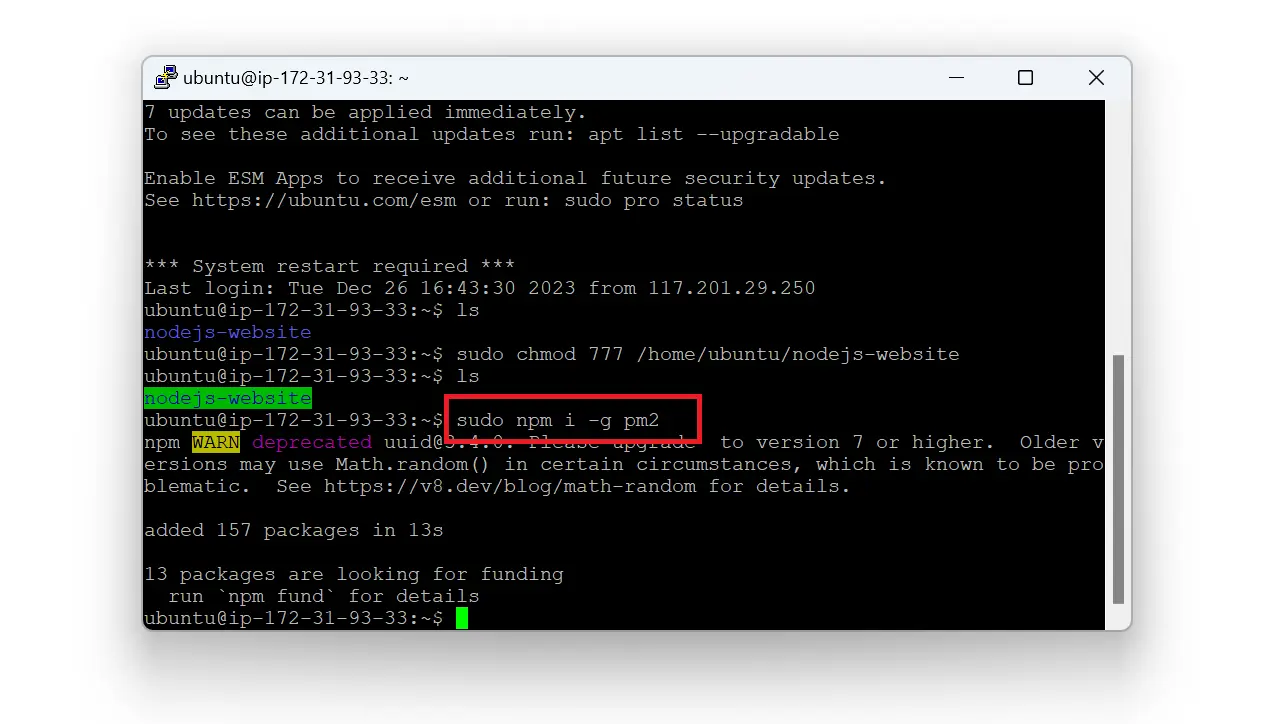
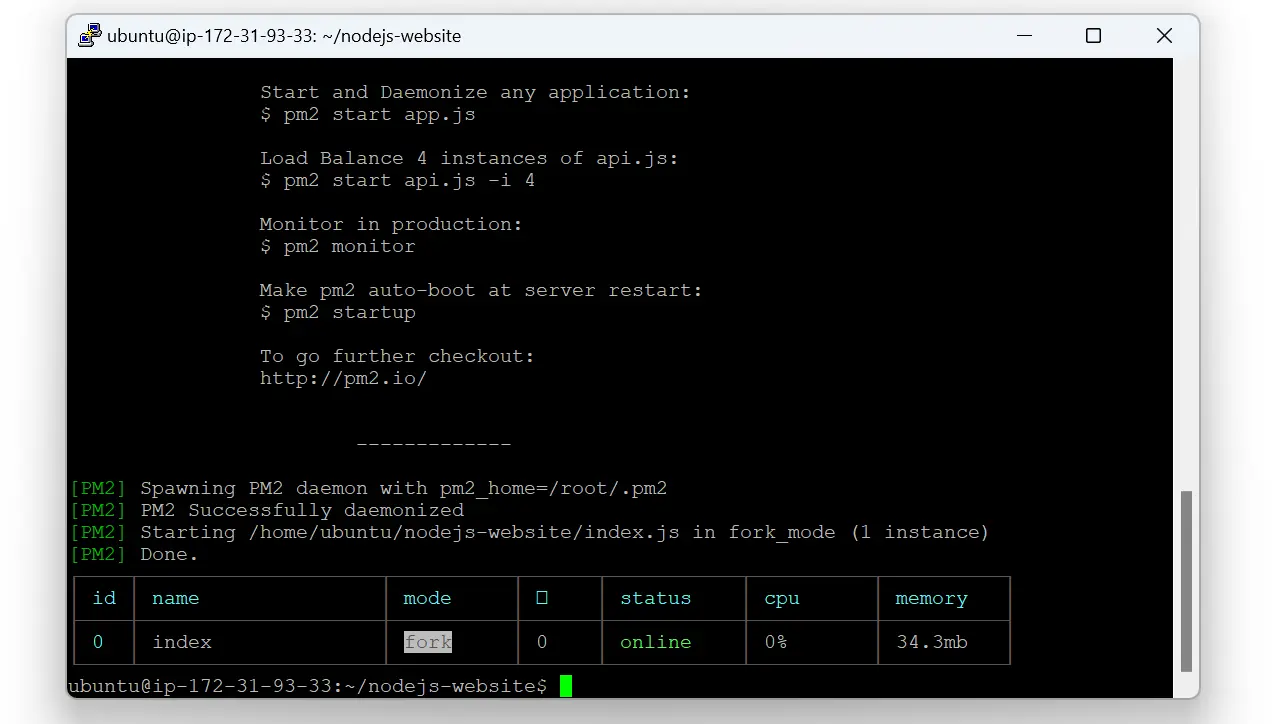
Ubuntu Start the app (port 80 usually requires sudo):
Terminal (EC2)cd /home/ubuntu/nodejs-website sudo pm2 start index.jsOpen inbound TCP 80 on the instance security group. You can close PuTTY; PM2 keeps the process running.
Ubuntu Visit
http://<public-dns-or-ip>/andhttp://.../hello-world.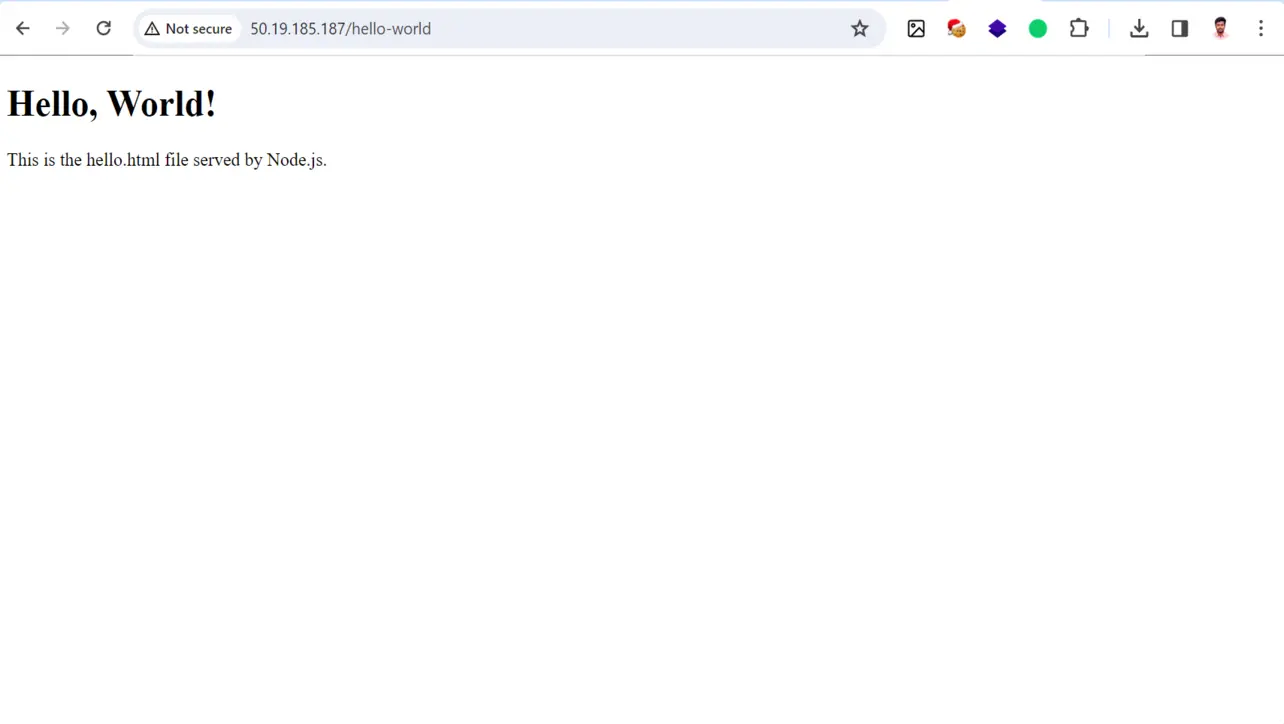
Browser
Key takeaways
A tiny http.createServer handler is enough to learn EC2 networking and PM2.
PM2 supervises the process; fix ownership instead of relying on 777 long term.
Move to Express or a framework when routes and middleware grow.
Frequently asked questions
Level up to Express
The next guide adds Express.js for cleaner routes and static hosting patterns.
This example uses Node’s built-in http module only—no frameworks. For routing, middleware, and static assets at scale, most teams move to Express or another framework on top of Node.
About the author


8 people found this page helpful